网站支持HTTPS协议已经成为主流浏览器的默认安全功能。小型网站没有动力为购买SSL证书投入更多支出,通常寻求免费的SSL证书。
然而,免费证书服务参差不齐,有些不稳定,有些操作流程复杂审核周期长。另一方面,证书有效期越来越短,目前主流的免费SSL证书有效期约90天,预计到2029年,有效期将缩短至47天。因此,续期复杂度也是必需要考虑的选型因素。
本文介绍一种免费、简单、自动续期的SSL证书配置方法。整个过程仅需要一个工具,无需手动注册,无需登录域名管理后台。
一、环境
Windows server 2012以上版本 + IIS。
二、目标
- 支持HTTPS协议
- 免费
- 配置简单
- 自动续期
- 稳定
- 中国大陆可用
三、ACME协议
ACME协议全称是自动证书管理环境(Automatic Certificate Management Environment),是一套用于自动化管理SSL/TLS证书的国际标准通信协议,核心目标是实现证书申请、验证、颁发、续期和撤销全流程自动化,无需人工干预。
ACME协议由互联网安全研究小组(ISRG)开发,被定义在RFC 8555国际标准中,主要解决传统人工管理证书存在的过期风险高、大规模管理复杂度高、操作繁琐易出错等痛点,尤其适配现在证书有效期普遍缩短的行业趋势。
ACME协议采用客户端-服务器架构。
四、Let’s Encrypt简介
Let’s Encrypt是一个免费、自动化、开放的非营利性证书颁发机构(CA),由互联网安全研究组(ISRG)运营,旨在为所有人构建更安全、更尊重隐私的互联网。通过提供免费的TLS/SSL证书,帮助网站轻松启用HTTPS加密,保护用户数据传输安全。
截至2026年,Let’s Encrypt 已为全球超过 7亿个网站 提供免费证书服务。
五、win-acme
win-acme(早期也称作wacs)是一款专门为Windows系统设计的免费、开源的ACME客户端。它的核心作用是帮网站管理员自动申请、续期和部署SSL/TLS证书,省去手动操作的麻烦。
官方网站:https://www.win-acme.com/
开源项目:https://github.com/win-acme/win-acme/
需要说明的是,win-acme并不是唯一可选工具,因为ACME是个协议,支持这个协议的工具都可以使用,与win-acme功能类似的工具还有Certify The Web、Posh-ACME等。详见参考文献[1]。
本章节仅介绍win-acme工具的使用方法。
5.1 下载win-acme
登录IIS Web服务器,使用win-acme的前提条件是Web服务器可以访问公网,且可以通过HTTP协议域名访问网站。
从win-acme官方网站下载最新版本软件,下图所示。
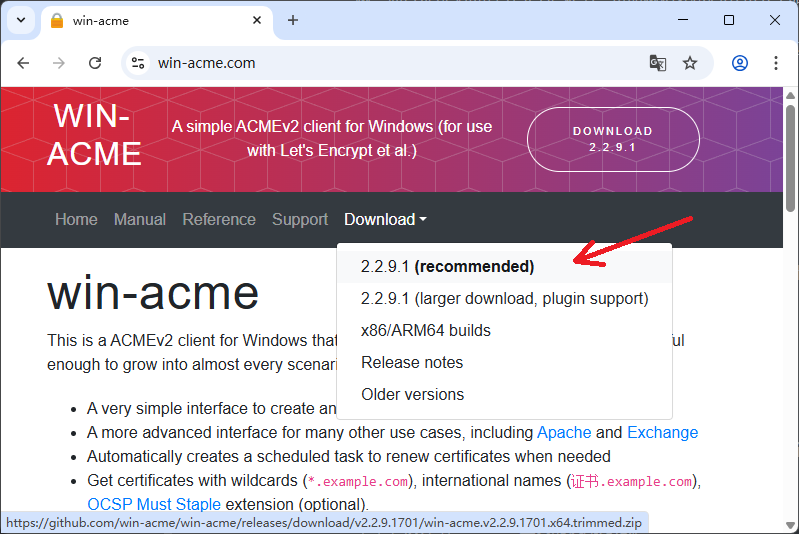
解压下载的.zip文件,假设解压缩到E:\win-acme\文件夹。
注意!注意!注意!
重要的事情说三遍!
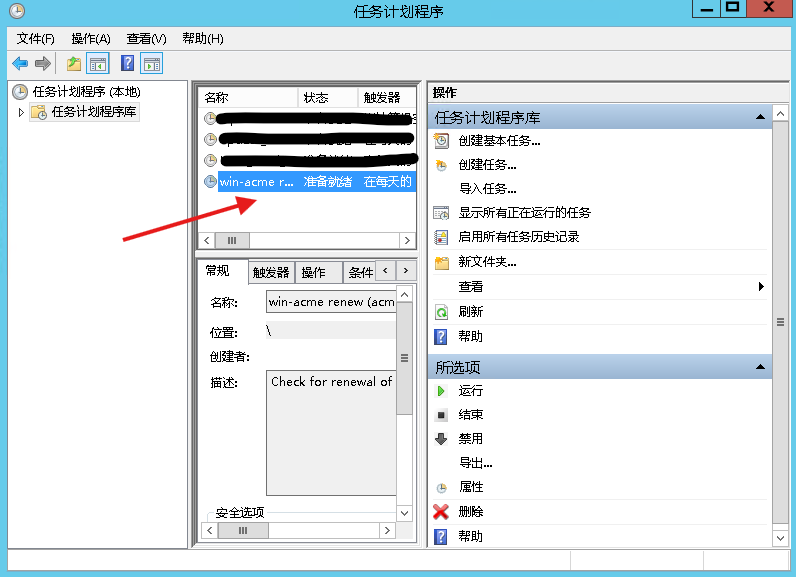
解压到目录后,一旦后续证书注册和配置成功,不得再删除或移动上述文件夹,因为配置成功后,win-acme会自动在Windows中添加一个计划任务,证书续期时还会执行该目录下的软件。
5.2 运行win-acme
你可能已经注意到了,Let’s Encrypt和win-acme官方网站都没有用户注册菜单,这和其它机构提供的SSL证书过程有很大区别。
win-acme工具已经内置了账号注册、检查、配置和续期的全部功能,而且诸如账户注册这样的操作,用户是无感知的。
进入E:\win-acme\目录,右键菜单,“以管理员身份运行wacs.exe程序。win-acme是一个命令行程序,如下图所示,按照提示操作即可完成全部配置操作。
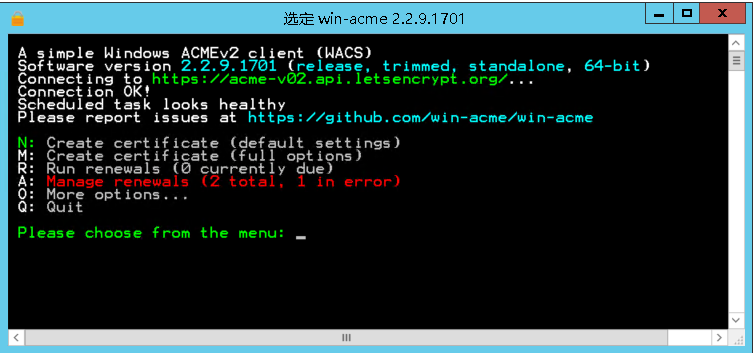
以下逐步拆解操作过程(需要说明的是,以下大部分步骤都有多个选项,用户需要根据实际需求选择,以下仅作示例):
Step 1. 选择管理证书方式
N: Create certificate (default settings)
M: Create certificate (full options)
R: Run renewals (0 currently due)
A: Manage renewals (1 total)
O: More options...
Q: Quit

Please choose from the menu: M
因为是新创建证书,所以选择M,当然也可以选择N。
Step 2. 选择如何输入域名
Please specify how the list of domain names that will be included in the
certificate should be determined. If you choose for one of the "all bindings"
options, the list will automatically be updated for future renewals to
reflect the bindings at that time.

1: Read bindings from IIS
2: Manual input
3: CSR created by another program
C: Abort

How shall we determine the domain(s) to include in the certificate?: 2
这里我选择2(手动输入域名),然后提示输入Host:
Description:         A host name to get a certificate for. This may be a
                    comma-separated list.

Host: 200yi.com,www.200yi.com
输入需要支持HTTPS协议的域名(以逗号分隔多个子域名),例如“200yi.com,www.200yi.com”,当然也支持泛域名。
Step 3. 证书分割策略
By default your source identifiers are covered by a single certificate. But
if you want to avoid the 100 domain limit, want to prevent information
disclosure via the SAN list, and/or reduce the operational impact of a single
validation failure, you may choose to convert one source into multiple
certificates, using different strategies.

1: Separate certificate for each domain (e.g. *.example.com)
2: Separate certificate for each host (e.g. sub.example.com)
3: Separate certificate for each IIS site
4: Single certificate
C: Abort

Would you like to split this source into multiple certificates?: 4
我使用单个证书,因此选择选项4。
Step 4. 域名所有权认证方式
The ACME server will need to verify that you are the owner of the domain
names that you are requesting the certificate for. This happens both during
initial setup *and* for every future renewal. There are two main methods of
doing so: answering specific http requests (http-01) or create specific dns
records (dns-01). For wildcard identifiers the latter is the only option.
Various additional plugins are available from
https://github.com/win-acme/win-acme/.

1: [http] Save verification files on (network) path
2: [http] Serve verification files from memory
3: [http] Upload verification files via FTP(S)
4: [http] Upload verification files via SSH-FTP
5: [http] Upload verification files via WebDav
6: [dns] Create verification records manually (auto-renew not possible)
7: [dns] Create verification records with acme-dns (https://github.com/joohoi/ame-dns)
8: [dns] Create verification records with your own script
9: [tls-alpn] Answer TLS verification request from win-acme
C: Abort

How would you like prove ownership for the domain(s)?: 1
这一步是验证你是域名的所有者,有多种验证方式可选,我使用方式1,你可以根据实际情况选择验证方式。
因为我选择了1,所以需要输入IIS的网站物理路径,例如:C:\inetpub\wwwroot
同样是因为我选择了验证方式1,所以随后需要确认是否备份web.config:
Description:         Copy default web.config to the .well-known directory.
Default:             False
Argument:            False (press <Enter> to use this)

Copy default web.config before validation? (y/n*) - yes
我选择“yes”。
Step 5. 选择密钥类型
After ownership of the domain(s) has been proven, we will create a
Certificate Signing Request (CSR) to obtain the actual certificate. The CSR
determines properties of the certificate like which (type of) key to use. If
you are not sure what to pick here, RSA is the safe default.

1: Elliptic Curve key
2: RSA key
C: Abort

What kind of private key should be used for the certificate?: 2
在确认了域名所有权之后,进入密钥选择阶段。有两种类型密钥可选,我使用RSA,因此选择2。
Step 6. 密钥存储位置
When we have the certificate, you can store in one or more ways to make it
accessible to your applications. The Windows Certificate Store is the default
location for IIS (unless you are managing a cluster of them).

1: IIS Central Certificate Store (.pfx per host)
2: PEM encoded files (Apache, nginx, etc.)
3: PFX archive
4: Windows Certificate Store (Local Computer)
5: No (additional) store steps

How would you like to store the certificate?: 4
密钥生成后,选择密钥存储位置,默认选项4即可,即存储在本地Windows证书存储区。
因为选择了4,所以接下来需要选择证书具体存储区:
1: [My] - General computer store (for Exchange/RDS)
2: [Default] - Use global default, currently WebHosting

Choose store to use, or type the name of another unlisted store: 2
1表示“个人”证书存储区,存储位置在:certmgr.msc → 证书 → 个人。
2表示WebHosting存储区,存储位置在注册表:HKEY_LOCAL_MACHINE\SOFTWARE\Microsoft\SystemCertificates\WebHosting\Certificates
我选择2。
因为密钥支持存储在多个位置,因此,以上步骤确认后,再次进入密钥位置选择界面:
1: IIS Central Certificate Store (.pfx per host)
2: PEM encoded files (Apache, nginx, etc.)
3: PFX archive
4: Windows Certificate Store (Local Computer)
5: No (additional) store steps

Would you like to store it in another way too?: 5
因为我不打算存储到其它位置,所以选择5。
Step 7. 更新IIS配置
With the certificate saved to the store(s) of your choice, you may choose one
or more steps to update your applications, e.g. to configure the new
thumbprint, or to update bindings.

1: Create or update bindings in IIS
2: Start external script or program
3: No (additional) installation steps

Which installation step should run first?: 1
证书存储后,更新IIS,我选择选项1,以更新IIS的网站绑定。
Step 8. 更新站点
During initial setup, it will try to make as few changes as possible to IIS
to cover the source identifiers. If new bindings are needed, by default it
will create those at the same site where the HTTP binding for that host was
found.

1: Default Web Site

Choose site to create new bindings: 1
选择更新哪个IIS站点,因为我只有一个默认的IIS站点,所以选择1。
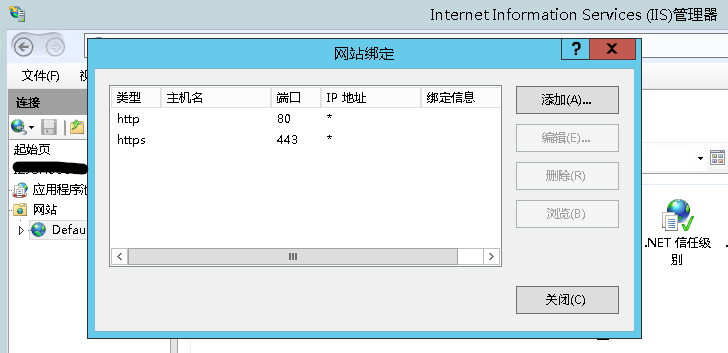
本步骤执行成功后,IIS网站将自动绑定443端口。详见下文5.3小节。
Step 9. 验证
完成上述配置后,验证HTTPS是否生效,HTTPS和HTTP协议都测试一下。
如果HTTPS访问失败,建议等待一会儿重试,因为SSL证书服务器更新需要一段时间,建议半小时后重试。
提示:上述配置过程中,如果对具体步骤不理解,建议直接问AI。
5.3 检查配置后的IIS
以上win-acme第7步配置完成后,会在IIS中为网站绑定添加一条443端口配置,如下图所示。
因此,请确保你的Web服务器已开放443端口,如果使用云服务器,云服务器安全组也必需开放443端口。
5.4 证书自动续期
win-acme配置成功后,证书到期前,win-acme将自动进行证书续期,这个过程是通过Windows计划任务程序实现的,可以看到在“计划任务程序”中增加了一条计划,下图所示:
六、SSL证书有效期
为什么SSL证书有效期越来越短?
SSL/TSL证书的有效期缩短并非突发调整,而是延续了十余年的渐进式变革:从最早的最长5年,逐步缩短为3年→2年→398天(约1年),目前主流有效期为90天,最终将在2029年压缩到47天。
这一变革由谷歌、苹果、微软等主流浏览器厂商主导推动,CA/B论坛(https://cabforum.org)投票通过,所有证书颁发机构都必须执行。
SSL证书有效期越来越短是全球行业为提升网络安全主动推动的标准变革,核心源于安全刚需与技术演进,具体原因如下:
- 核心安全目标:压缩风险暴露窗口
SSL证书有效期越长,被破解、私钥泄露、配置错误或域名被劫持后,风险持续存在的时间就越长。缩短有效期能大幅压缩攻击窗口:一旦出现安全问题,失效证书会更快被自然淘汰,降低潜在危害。同时也能更快推动全网淘汰老旧不安全的加密算法,普及更先进的加密标准,提升整体加密安全性。
- 适配安全态势发展
随着量子计算、AI攻击等新技术发展,传统长有效期证书的安全能力已经不足以应对当前威胁,缩短周期本质是通过高频更新构建更动态的安全防护网,是网络安全态势倒逼的结果。此外大量简单验证的DV证书(如Let’s Encrypt)绑定的域名转让频繁,原持有者一般不会主动吊销旧证书,较长有效期会持续留下安全隐患,缩短有效期可针对性降低这类风险。
- 推动证书管理自动化普及
行业共识是人工手动管理证书的模式已经无法适配现代大规模、分布式的IT架构,频繁出错还容易导致业务中断。缩短有效期会倒逼企业淘汰人工管理,全面普及自动化证书管理工具(如ACME协议),最终提升整体证书管理的安全性和运维效率。
七、SSL vs TLS
上文没有区分SSL和TLS,实践上两者是有区别的。TLS是SSL的升级与标准化版本,SSL已淘汰,现在实际用的都是TLS。
- SSL(Secure Sockets Layer):网景1990年代开发,已全部废弃。
- TLS(Transport Layer Security):IETF 1999年基于SSL 3.0标准化,TLS 1.0 ≈ SSL 3.1,目前主流 1.2、推荐 1.3。
TLS是现代安全标准,日常说的“SSL 证书/HTTPS”,底层都是 TLS。详见参考文献[3, 4]。
八、参考文献
 |  |